- Freemium plans
- Free trials
- Lifetime deals
- Internal users or test accounts
- Enterprise contracts handled off-Stripe
Unlike Stripe products, custom products are assigned to customers manually using our API.
How to create a custom product
- Go to the products page
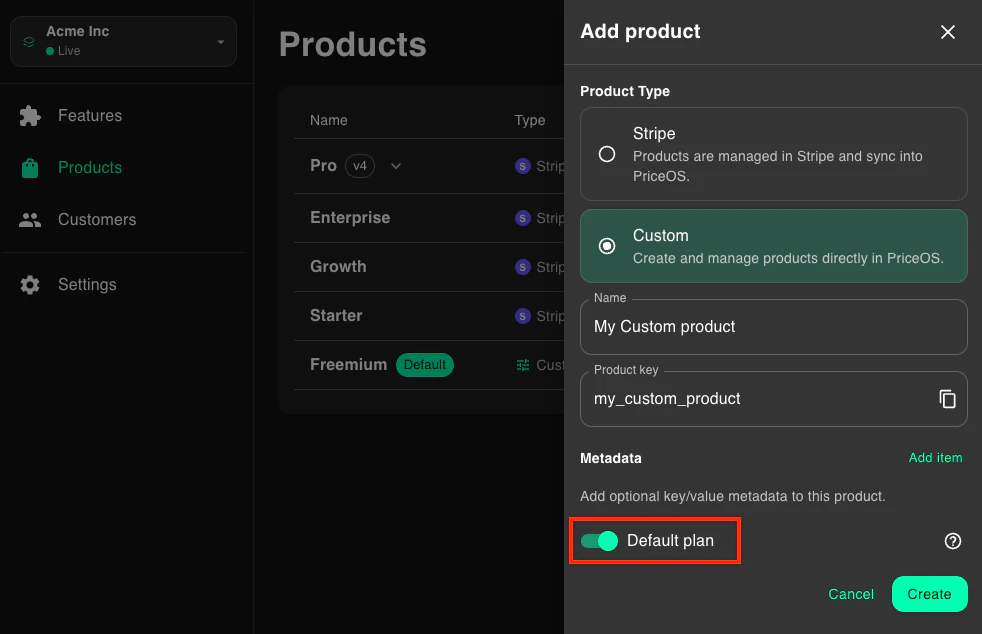
- Click the New Product button
- Enter a name for the product
- Click the Create button
How to assign custom products to customers
You can assign products when you create a custom or anytime after.If you have limit features that reset periodically based on billing period, you can set the
usageStartedAt field to specify the reset anchor.If not specified, we’ll use the date the customer was created.Removing custom products from customers
To remove custom products from customers, just update the customer with whatever custom product keys the customer should have.Default custom products
Default custom products let you define feature access for everyone else who doesn’t have a product, which can be useful for things like freemium plans.How default custom products work
There are some important points to understand about default custom products…- You can only have one default product
- Default products get automatically applied to any customers not assigned a product
- Default products cannot be manually assigned
- Default products cannot have multiple versions
If a customer has either Stripe-derived products or assigned custom products, the default product is not used.
Creating a default product
You can set any custom product as the default product by clicking the default switch when creating or editing a custom product.