> ## Documentation Index
> Fetch the complete documentation index at: https://docs.priceos.com/llms.txt
> Use this file to discover all available pages before exploring further.

# Stripe Products

> Easily define feature access for all your Stripe products.

Stripe products are automatically imported and synced from your Stripe account.

In PriceOS, they serve as convenient containers for you to [define feature access](/defining-feature-access).

<Note>You cannot create or edit Stripe products in PriceOS. Instead, you manage them in Stripe and then PriceOS will automatically import and sync the changes.</Note>

***

## How it works

1. You create and manage Stripe products and prices in Stripe
2. PriceOS automatically imports and syncs products, prices, subscriptions, and customers from Stripe
3. You [define feature access](/defining-feature-access) for your Stripe products in PriceOS

Then, when you to [evalute feature access](/evaluating-feature-access) in your application, PriceOS is able to automatically map your customers to the feature access you defined in your products.

export const StripeProductsMappingDiagram = () => (
  <div
    style={{
      marginTop: "1rem",
      marginBottom: "1.5rem",
      borderRadius: "14px",
      border: "1px solid #E5E7EB",
      background: "#F9FAFB",
      overflow: "hidden",
    }}
  >
    <svg
      viewBox="0 0 940 260"
      width="100%"
      height="100%"
      role="img"
      aria-label="Stripe customer mapping to feature access definitions"
    >
      <defs>
        <filter id="stripeProductsShadow" x="-20%" y="-20%" width="140%" height="140%">
          <feDropShadow dx="0" dy="2" stdDeviation="4" floodColor="#111827" floodOpacity="0.12" />
        </filter>
      </defs>

      <rect width="940" height="260" fill="#F9FAFB" />

      <g>
        <rect x="20" y="16" width="640" height="38" rx="8" fill="#EEF2FF" stroke="#C7D2FE" />
        <text x="340" y="40" textAnchor="middle" fontSize="15" fontWeight="700" fill="#4338CA">
          Imported from Stripe
        </text>
      </g>

      <g>
        <rect x="680" y="16" width="240" height="38" rx="8" fill="#ECFDF5" stroke="#A7F3D0" />
        <text x="800" y="40" textAnchor="middle" fontSize="15" fontWeight="700" fill="#065F46">
          Defined in PriceOS
        </text>
      </g>

      <g filter="url(#stripeProductsShadow)">
        <rect x="20" y="92" width="150" height="92" rx="10" fill="#FFFFFF" stroke="#D1D5DB" />
        <text x="95" y="128" textAnchor="middle" fontSize="17" fontWeight="600" fill="#111827">
          Stripe customer
        </text>
        <text x="95" y="151" textAnchor="middle" fontSize="13" fill="#6B7280">
          cus_1234
        </text>
      </g>

      <g filter="url(#stripeProductsShadow)">
        <rect x="190" y="92" width="150" height="92" rx="10" fill="#FFFFFF" stroke="#D1D5DB" />
        <text x="265" y="128" textAnchor="middle" fontSize="17" fontWeight="600" fill="#111827">
          Subscriptions
        </text>
        <text x="265" y="151" textAnchor="middle" fontSize="13" fill="#6B7280">
          sub_001, sub_002
        </text>
      </g>

      <g filter="url(#stripeProductsShadow)">
        <rect x="360" y="92" width="140" height="92" rx="10" fill="#FFFFFF" stroke="#D1D5DB" />
        <text x="430" y="128" textAnchor="middle" fontSize="17" fontWeight="600" fill="#111827">
          Prices
        </text>
        <text x="430" y="151" textAnchor="middle" fontSize="13" fill="#6B7280">
          price_basic
        </text>
      </g>

      <g filter="url(#stripeProductsShadow)">
        <rect x="520" y="92" width="140" height="92" rx="10" fill="#FFFFFF" stroke="#D1D5DB" />
        <text x="590" y="128" textAnchor="middle" fontSize="17" fontWeight="600" fill="#111827">
          Products
        </text>
        <text x="590" y="151" textAnchor="middle" fontSize="13" fill="#6B7280">
          Pro plan
        </text>
      </g>

      <g filter="url(#stripeProductsShadow)">
        <rect x="680" y="74" width="240" height="128" rx="10" fill="#FFFBEB" stroke="#FCD34D" />
        <text x="800" y="113" textAnchor="middle" fontSize="19" fontWeight="700" fill="#92400E">
          Feature access
        </text>
        <text x="800" y="139" textAnchor="middle" fontSize="14" fill="#92400E">
          Team seats: 5
        </text>
        <text x="800" y="162" textAnchor="middle" fontSize="14" fill="#92400E">
          Credits: 5,000
        </text>
      </g>

      <path d="M 170 138 L 190 138" stroke="#4B5563" strokeWidth="2.5" />
      <path d="M 340 138 L 360 138" stroke="#4B5563" strokeWidth="2.5" />
      <path d="M 500 138 L 520 138" stroke="#4B5563" strokeWidth="2.5" />
      <path d="M 660 138 L 680 138" stroke="#4B5563" strokeWidth="2.5" />
      <polygon points="184,131 190,138 184,145" fill="#4B5563" />
      <polygon points="354,131 360,138 354,145" fill="#4B5563" />
      <polygon points="514,131 520,138 514,145" fill="#4B5563" />
      <polygon points="674,131 680,138 674,145" fill="#4B5563" />
    </svg>
  </div>
);

<StripeProductsMappingDiagram />

## Linking Stripe prices to Stripe products

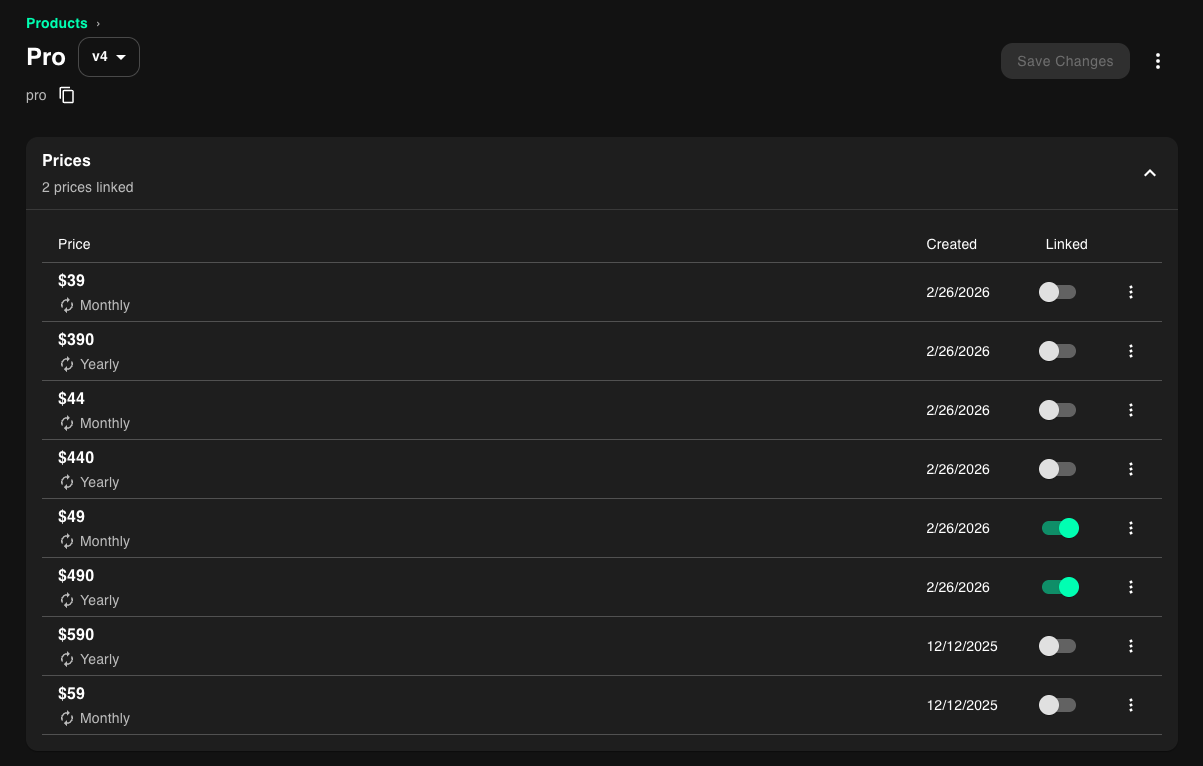
By default, all Stripe prices will be automatically linked to their corresponding product.

That means that any customers who have a subscription with any of those Stripe prices will receive the feature access you define for the product.

You can see which prices are linked in the product details page.

<img src="https://mintcdn.com/priceos/ajKnnXzH4aBvtSvO/images/priceLink.png?fit=max&auto=format&n=ajKnnXzH4aBvtSvO&q=85&s=883a649a95d6637f8d4242a8010affbd" alt="Linking Stripe prices in PriceOS product details page" width="1203" height="766" data-path="images/priceLink.png" />

You can update which prices are linked to the product by toggling the switch.

<Tip>If you need different feature access for different prices, you can create [multiple product versions](/product-versioning) that are linked to different prices.</Tip>

***

## Hiding Stripe products

By default, we import all of your Stripe products, but often, not every Stripe product needs feature access.

<Note>Hiding a product in PriceOS does not change anything in your Stripe account.</Note>

### Hiding a single Stripe product

1. Go to the [products page](https://app.priceos.com/products)
2. Click the <b>More menu (...)</b> next to the product you want to hide
3. Click the <b>Hide from PriceOS</b> menu option

### Hiding multiple Stripe products

You can also use our bulk select to hide multiple Stripe products at once

1. Go to the [products page](https://app.priceos.com/products)
2. Click the <b>More menu (...)</b> at the top right of the page
3. Click the <b>Bulk select</b> option
4. Select which products you want to hide
5. Click the <b>Hide from PriceOS option</b>